A useful video-call setup starts with placement, lighting, and reliable access. Decide when a lamp, laptop stand, or external webcam is the worthwhile upgrade.
Our advice is based on published information and the use cases explained below. Manufacturer links in this guide are ordinary links, not paid placements. How links work.

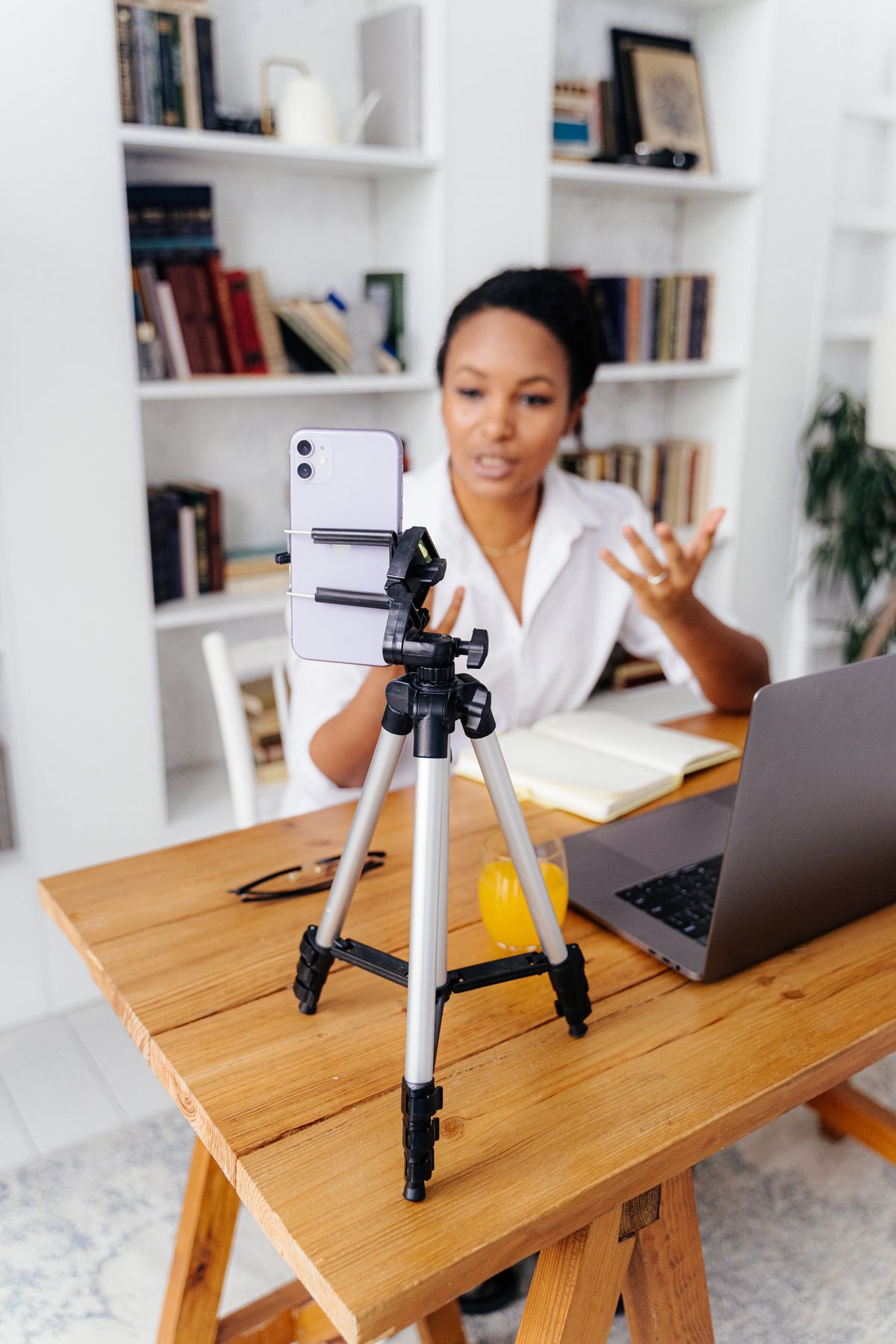
Start by placing the camera near a useful viewing angle and giving your face even light. If the built-in camera then meets your needs, keep it. Buy an external webcam for a better position, useful field of view, privacy controls, or specific image features. Higher resolution alone does not establish a better call, and your meeting software and connection affect what others receive.
Solve the room before choosing a camera
A video call at a dining table can look poor even with a capable laptop camera: the window is behind you, the screen sits low, and the only lamp points at the keyboard. Before buying equipment, open a preview in the calling app and change the room arrangement. Move so a window or suitable lamp illuminates your face rather than the background.
Check the result at the time you normally take calls. Morning daylight and an evening ceiling light create different conditions, so a setup that works once may not cover your workday. You do not need a studio. A consistent place to sit and a controllable light source can be more useful than buying a camera with a specification you rarely transmit.
Put the lens where the conversation happens
A laptop camera can feel too low when the computer sits on a dining table. Raising the laptop on an appropriate stand can improve placement, but plan for a separate keyboard and mouse if that is how you will work for long sessions. An external webcam offers more freedom to place the lens near the screen you actually watch during meetings.
Check mounting compatibility with your monitor, especially if it has a thin bezel or unusual rear shape. A camera that requires an improvised balance is an irritating purchase. Consider the cable length and a useful field of view too. A very wide image can show more of the room than you want, while a narrow composition may suit a small shared workspace.
Choose lighting you can control
If the room becomes dim after sunset, try a soft, appropriately positioned lamp before replacing a serviceable webcam. Avoid directing a harsh exposed light into your eyes. Look at the preview while adjusting the position and intensity, and watch for reflections in glasses. A small change in angle can be more useful than turning brightness up indiscriminately.
A dedicated video light can be worthwhile when you take frequent calls in inconsistent conditions. Compare mounting space, brightness control, power requirements, and the ease of reaching the controls. A large ring light is not automatically necessary for a desk conversation. Choose something you can leave in a useful position without blocking the display or filling the working surface.
Buy camera features with a specific purpose
Logitech's Brio 300 series documentation describes 1080p capture and automatic light correction. Those are examples of features to compare, not proof that any camera can repair difficult room lighting. Decide whether you need a privacy shutter, a different lens position, adjustable framing, or support for a particular application. That requirement should guide the shortlist more than the largest resolution number.
Check whether autofocus or fixed focus suits the job. Showing a document or product to the camera is different from sitting at a consistent distance for a meeting. Verify operating-system requirements and whether advanced controls need software that your work computer allows. A useful feature on a product page can be unavailable in your managed workplace setup.
Check the rest of the call path
Meeting software, account settings, and connection conditions influence the image other people see. Do not assume that a camera's maximum output is what every service sends. Use the calling app's settings and preview, then make a short practical check with another device or a willing colleague. Listen to the audio as well, since understandable speech is central to a successful call.
If the camera does not appear, check the physical privacy control, connection, and app permissions before ordering replacement hardware. Microsoft's troubleshooting guidance includes camera access settings and connection checks. A missing permission can make a working camera look defective. Avoid adding a hub or unnecessary adapter while diagnosing the basic connection; simplify the arrangement first.
Spend on the weakest part of the setup
If changing placement and light gives you a clear, stable picture, the best purchase may be a modest stand or no camera purchase at all. If you use an external monitor all day, a separate webcam can improve where you look and how easily you start a call. If the room is persistently dark, a controllable light may be the more useful first expense.
Buy one component at a time where practical and check it in a representative call. Keep the return option open until the mount, cable, software, and room arrangement all work together. A dependable everyday setup should be easy to resume on a busy morning, with clear privacy controls and no need to rebuild a temporary filming arrangement for every meeting.
Choose for the way you use it
| Use case | Look for | Tradeoff |
|---|---|---|
| Built-in camera looks dark | Better light placement or controllable lamp | Room changes may still be needed |
| Calls on external monitor | Webcam mount near the screen you watch | Another cable and USB connection |
| Frequent document demonstrations | Focus behavior and framing suited to close objects | Requires more specific feature checking |
Before you buy
- Check the calling-app preview at your usual meeting times.
- Verify mount fit, cable reach, and privacy controls.
- Confirm required camera software is permitted at work.
- Check app permissions before assuming hardware failure.
Common questions
Will a 4K webcam always improve my meetings?
No. Lighting, placement, software limits, and connection conditions affect the result. Buy higher resolution when it serves a specific supported task.
Should I buy a light or a camera first?
Try improving light and placement with what you have. Buy the component that addresses the remaining problem, such as inconsistent evening lighting or an awkward lens position.
Sources & further reading
Official information consulted October 19, 2026. Buying recommendations and use-case judgments are TechPixl editorial analysis.