Plan laptop RAM around overlapping calls, browser tabs, documents, and photo work, then check whether your chosen configuration can ever be upgraded.
Our advice is based on published information and the use cases explained below. Manufacturer links in this guide are ordinary links, not paid placements. How links work.
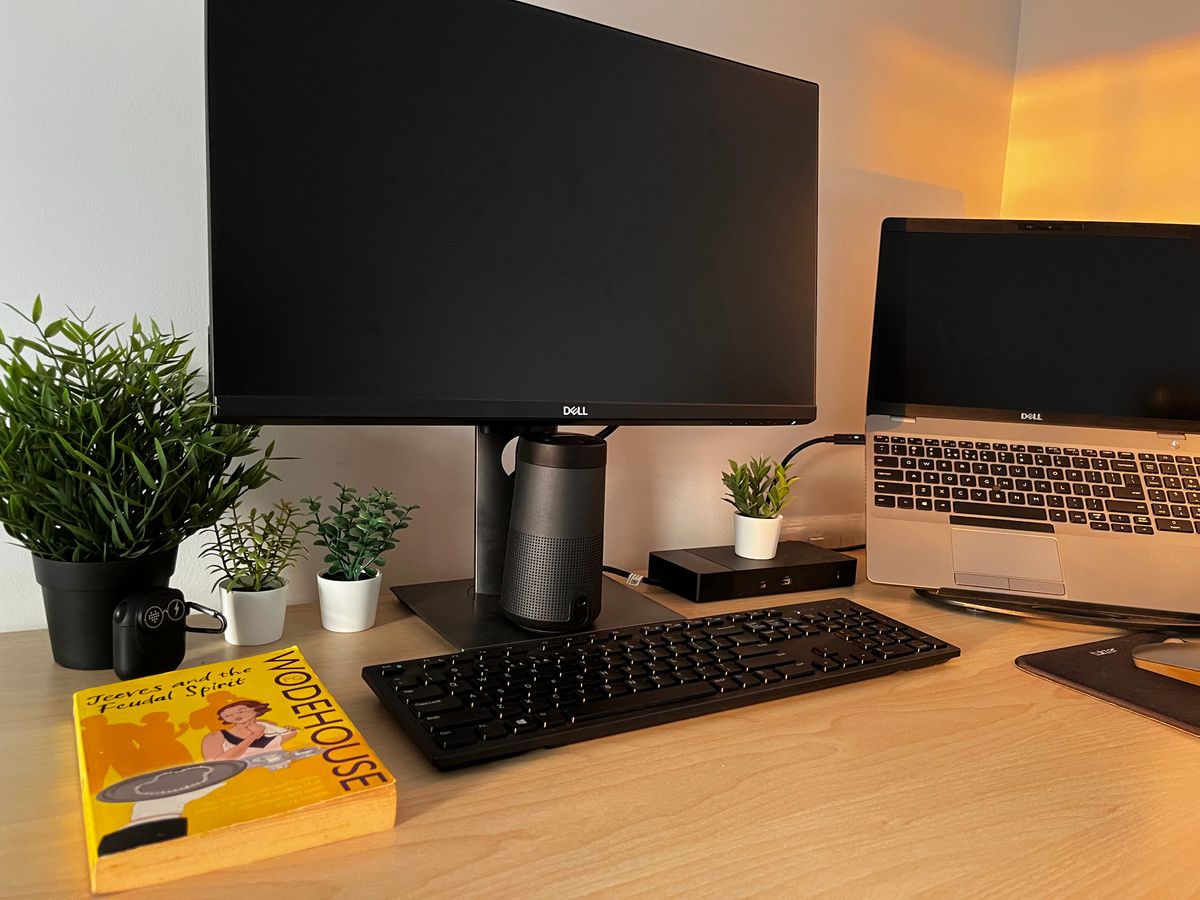
For a new laptop used for overlapping office work, calls, browsing, and occasional photo editing, TechPixl Editorial would begin the shortlist at 16GB and consider more when the actual applications justify it. This is a purchasing starting point, not a measured minimum. A fixed-memory laptop deserves particular care because the configuration bought today may remain the configuration for its entire useful life.
Describe the overlap, not just the applications
An ordinary busy morning can involve a video meeting, a presentation, several research tabs, a messaging app, and a folder of family photographs uploading in the background. Calling that routine 'just browsing' hides the part that matters: several tasks remain open together. Before comparing laptop configurations, write a short description of your busiest normal hour, including background tools you rarely notice until they interrupt something else.
Then distinguish regular overlap from an occasional demanding project. Someone who edits a few holiday pictures twice a year has a different reason to spend than a person handling large creative files every afternoon. Buy for work you can describe. Paying for a large memory configuration solely because you might someday learn an unspecified application is a weaker argument than preserving applications you already switch between daily.
Use your current computer as evidence
Microsoft's performance guidance recommends observing processor, memory, and disk use in Task Manager. Apple's Activity Monitor explains memory pressure as a view of how efficiently memory meets processing needs. Use the appropriate built-in tool during your normal routine, rather than examining an empty desktop immediately after startup. A screenshot of one moment is less useful than a recurring pattern when the same workload becomes uncomfortable.
Avoid treating a large 'used memory' number as a diagnosis on its own. Apple describes cached files, compressed memory, and swap among its memory statistics; those categories need context. Note which task becomes slow and whether closing a particular application changes the experience. A poor internet connection during a meeting, limited storage space, or a demanding processor workload can require a different solution from buying additional RAM.
Treat capacity guidance as a shortlist
For a newly purchased everyday laptop, starting comparisons around 16GB gives a practical place to evaluate mixed work without treating the smallest configuration as the default bargain. Consider 24GB or 32GB when documented application requirements, sustained creative work, or your existing workload provide a reason. These are editorial shopping bands, not promises that a particular capacity will deliver a particular speed or handle every future application.
An 8GB configuration may still suit a tightly limited routine or an inexpensive secondary machine, especially when its buyer understands the compromises. Compare the complete purchase, however. A discounted computer becomes less compelling if its fixed capacity repeatedly makes you close useful tools. Conversely, someone writing documents and using a handful of tabs should ask what benefit an expensive top configuration actually brings before sacrificing screen quality or a comfortable keyboard.
Find out whether the configuration is permanent
The words 'laptop memory' do not establish that modules can be added later. Look up the exact model's service manual and configuration documentation. Dell's upgrade guidance directs buyers to supported memory specifications; the relevant questions are whether memory is replaceable, which types are supported, and what the platform accepts. Do not extrapolate from another laptop that happens to share the brand or a similar product name.
Check populated slots as well as the maximum supported capacity. A future upgrade can involve replacing existing modules rather than simply adding one inexpensive stick. Where memory is fixed, make the decision at checkout and compare the next capacity against the cost of replacing the whole computer early. Where it is serviceable, include labor, approved parts, and the practical difficulty of reaching the modules in your ownership plan.
Keep storage and memory budgets separate
A larger SSD holds more files; it does not turn into additional physical RAM. A configuration with generous storage and limited memory may look balanced on a retail card while missing your particular need. List capacity for active applications separately from capacity for photographs, downloads, and offline work. That simple split makes it easier to compare two configurations without being distracted by the largest number in the description.
Also compare support, battery service options, display quality, and the ports your daily setup needs. Memory is one part of a useful laptop, and buying more of it does not repair an uncomfortable screen or incompatible software. If the budget is tight, identify which compromise would bother you every day. A balanced model with enough memory for your routine is usually easier to live with than a premium chassis configured around an avoidable bottleneck.
Make checkout the last compatibility check
Record the full model and configuration before paying, including memory capacity and whether it is upgradeable. Check the actual seller's return policy and compare the specification on the order confirmation with your shortlist. Product-family pages can describe several configurations, so a general statement that a laptop is available with more memory does not mean that the particular discounted item includes it.
During the return period, set up your ordinary applications and use the laptop through a representative day. Look for a comfortable workflow, rather than trying to manufacture a stress test with hundreds of irrelevant tabs. If the configuration does not fit, change it while that option is straightforward. The useful purchase is enough capacity, appropriate upgrade expectations, and a computer that supports the work you already know how to describe.
Choose for the way you use it
| Routine | Shopping starting point | What to verify |
|---|---|---|
| Focused documents and a few tabs | Evaluate the entry configuration carefully | Real application requirements and return terms |
| Calls, office apps, browsing, and light photo work | Begin comparisons around 16GB | Comfort with your actual overlapping workload |
| Regular heavier creative work | Consider higher capacity based on the applications | Published requirements and fixed versus replaceable memory |
Before you buy
- Describe the busiest normal hour on your laptop.
- Observe current memory behavior during that workload.
- Read the exact model's memory and service documentation.
- Confirm the ordered capacity before checkout.
Common questions
Will more RAM make every slow laptop faster?
No. A processor limitation, storage issue, application problem, or weak network can need a different fix. Diagnose the recurring symptom before buying.
Can I upgrade any laptop to 32GB later?
No. Some memory is fixed, and serviceable models have specific module and capacity requirements. Check the exact model's documentation.
Sources & further reading
Official information consulted October 19, 2026. Buying recommendations and use-case judgments are TechPixl editorial analysis.