From a crowded train to an afternoon of video calls, hybrid work rewards the right keyboard, ports, portability, and software fit more than a flashy badge.
Our advice is based on published information and the use cases explained below. Manufacturer links in this guide are ordinary links, not paid placements. How links work.
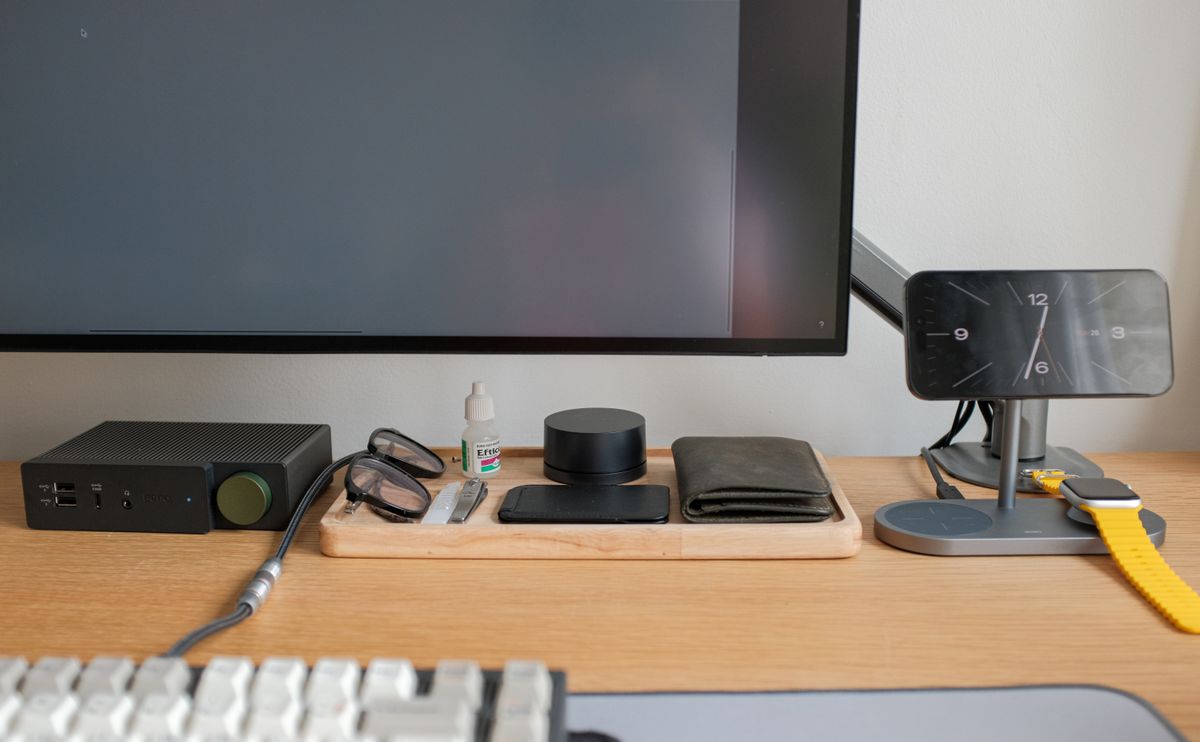
For mixed home and office work, begin with required software and employer policies, then prioritize comfortable input, sensible carrying weight, and the connections you use every day. Our practical starting point for ordinary multitasking is 16GB of memory, subject to your applications' requirements. Spend more only where a specific workload justifies it, and include the charger, dock, and support arrangement in the comparison.
Write down the inconvenient parts of your day
A hybrid workday can include a spreadsheet on the train, a presentation in a meeting room, and a video call at the kitchen table. A powerful laptop can still be the wrong tool if its charger is awkward to carry or its keyboard makes long emails tiring. Begin with the moments your current setup handles badly, rather than a list of new processor names.
Separate tasks that happen daily from the annual exception. Editing large media projects deserves different hardware from office documents and browser tools. If the occasional demanding job happens on an office workstation, you may not need to carry that capability everywhere. Equally, a laptop that becomes the only computer should be chosen for the complete workload it must support.
Let software and workplace policy narrow the field
Confirm that essential applications, security tools, peripherals, and remote-access systems support the operating system and processor architecture you are considering. Do not assume an app's general platform logo covers every version or plug-in. Employer-managed devices can also have purchasing or configuration rules that make an attractive personal recommendation unsuitable. Resolve those questions before comparing display finishes.
Microsoft's Windows 11 page lists installation requirements and notes that individual applications can require more. Treat a system minimum as an eligibility threshold, not a recommendation for comfortable multitasking. For ordinary browser, office, and call workloads, 16GB of memory is our editorial starting point; larger projects should follow the software vendor's guidance and your actual working-file sizes.
Carry the complete setup, not just the computer
Compare the laptop with the adapter and accessories you really transport. A lighter computer with a bulky proprietary charger may not improve the bag as much as expected. Check whether a suitable shared USB-C adapter is supported and whether it provides the required power under your workload. Keeping an appropriate charger at each regular desk can be a worthwhile convenience purchase.
Screen size is a similar compromise. A larger panel can help when no external display is available, while a smaller machine fits cramped travel better. Try the keyboard and trackpad if possible. Look at brightness and reflections in the sort of room you use, rather than judging only a showroom's vivid wallpaper. You will spend more time reading text than admiring promotional images.
Audit the ports and the meeting kit
List the actual connections: a presentation display, wired headset, storage device, card reader, or office Ethernet. Check each laptop's technical specifications and the docking setup at both workplaces. A connector that physically matches does not establish that it carries the required display signal or charging capability. One small missing function can add an adapter to every meeting.
Also check the webcam position, privacy controls, speakers, and microphone arrangement. These are everyday work tools, even if you usually use a headset. Consider how the laptop behaves on your chosen stand and whether a cable blocks an adjacent port. Reserve some budget for an external keyboard or display if those would improve the hours spent at your main desk.
Buy useful headroom without collecting expensive options
Storage should fit working documents, offline files, and the applications that must stay installed, with room for updates and growth. Check whether memory and storage can be upgraded later instead of assuming they can. If a component is fixed at purchase, choose deliberately. A higher-capacity configuration may be sensible for several years of use, but it is not automatically necessary for cloud-based work.
Compare service coverage, repair logistics, and the consequences of downtime. A household can sometimes wait for a repair; a sole freelancer may need a quicker route back to work. Read the seller's return terms and manufacturer support options in your region. Avoid valuing an uncertain headline discount more highly than a configuration and support plan you actually understand.
Validate your workday during the return window
Install the required applications and complete a normal session with a call, your usual browser tabs, and a representative document. Check the office display or dock, then try the same arrangement at home. This identifies compatibility and usability problems without pretending to be a standardized performance test. Keep your old machine available until the essential workflow is confirmed.
Choose the model that makes your typical day easier within budget. For many office workers, the sensible upgrade is better memory capacity, a more comfortable keyboard, or a cleaner docking routine rather than a premium graphics option. Explore current laptop configurations only after your requirements fit on a short page you can use to compare each candidate fairly.
Choose for the way you use it
| Use case | Look for | Tradeoff |
|---|---|---|
| Daily commute and office apps | Comfortable compact machine and manageable kit weight | Less screen space away from a desk |
| Large local creative projects | App-appropriate memory, storage, and processing | Higher cost and potentially heavier equipment |
| Two regular desks | Verified docking and charging at both locations | May justify duplicate accessories |
Before you buy
- Confirm essential apps and employer policies first.
- Weigh the laptop, charger, and usual adapters together.
- Check display and charging support for both work locations.
- Run a normal work session before retiring the old computer.
Common questions
Is the operating system's minimum memory enough?
Minimum requirements establish eligibility. Choose memory around your applications and multitasking; our ordinary office-work starting point is 16GB rather than the installation minimum.
Do I need a premium processor for hybrid work?
Only if your workload benefits. Comfortable input, sufficient memory, practical ports, and reliable support can matter more for documents, calls, and browser-based tools.
Sources & further reading
Official information consulted October 19, 2026. Buying recommendations and use-case judgments are TechPixl editorial analysis.