A larger screen only helps if it fits the desk. Compare physical dimensions, text scaling, stand depth, and laptop connections before choosing a monitor.
Our advice is based on published information and the use cases explained below. Manufacturer links in this guide are ordinary links, not paid placements. How links work.
Measure the working surface and viewing distance before choosing a screen diagonal. For a small desk, a well-positioned modest monitor can be more useful than a large panel that crowds the keyboard. Prioritize readable text, a stand or arm that fits, and verified laptop connectivity. Pay for gaming or color features when your workload needs them, and compare the complete setup cost.
Measure the desk as a working space
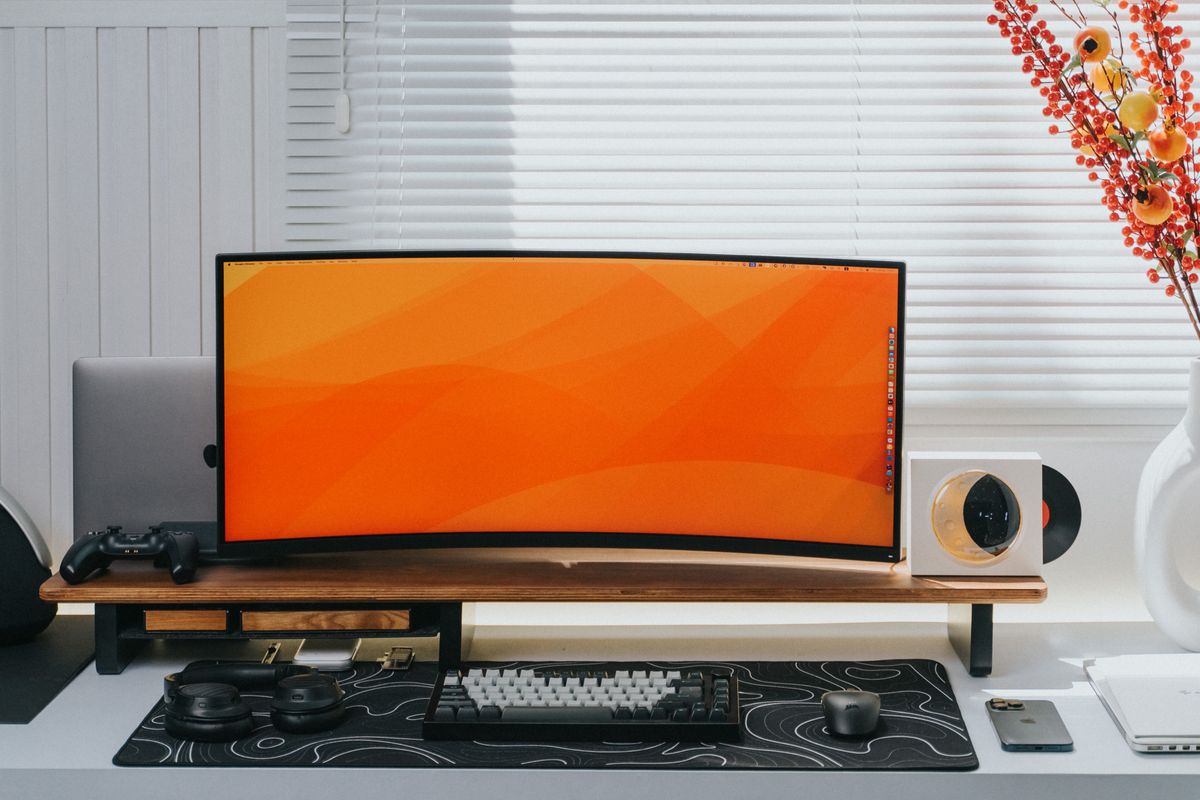
A spare-bedroom desk often shares its surface with a notebook, mug, lamp, and the laptop that drives the display. A large monitor can fit across the width while leaving nowhere comfortable for a keyboard. Measure the usable width and depth, including any shelf above the desk, then mark the space needed for the stand rather than judging only the screen.
Dell's monitor guidance distinguishes the diagonal screen measurement from the product's physical dimensions. Use the width, height, and depth with the stand fitted when checking a candidate. Leave room for cables to turn behind it. A cardboard outline on the desk can reveal an awkward arrangement before a delivery box arrives and the return process becomes your next project.
Choose text comfort before headline resolution
The best resolution is one that makes your documents comfortable at your normal distance. More pixels can make text look finer, but operating-system scaling affects how much usable workspace you gain. A higher-resolution display does not mean you should force tiny interface elements onto it. Try the scale you can actually read while seated normally.
For spreadsheet work, compare whether you need more visible columns or merely larger, clearer text. A writer may prefer a simpler display with a good stand, while someone editing photographs may have additional color requirements. Avoid buying professional color features or extreme refresh rates on the assumption that every specification upgrade improves email and document work equally.
Treat the stand as part of the monitor
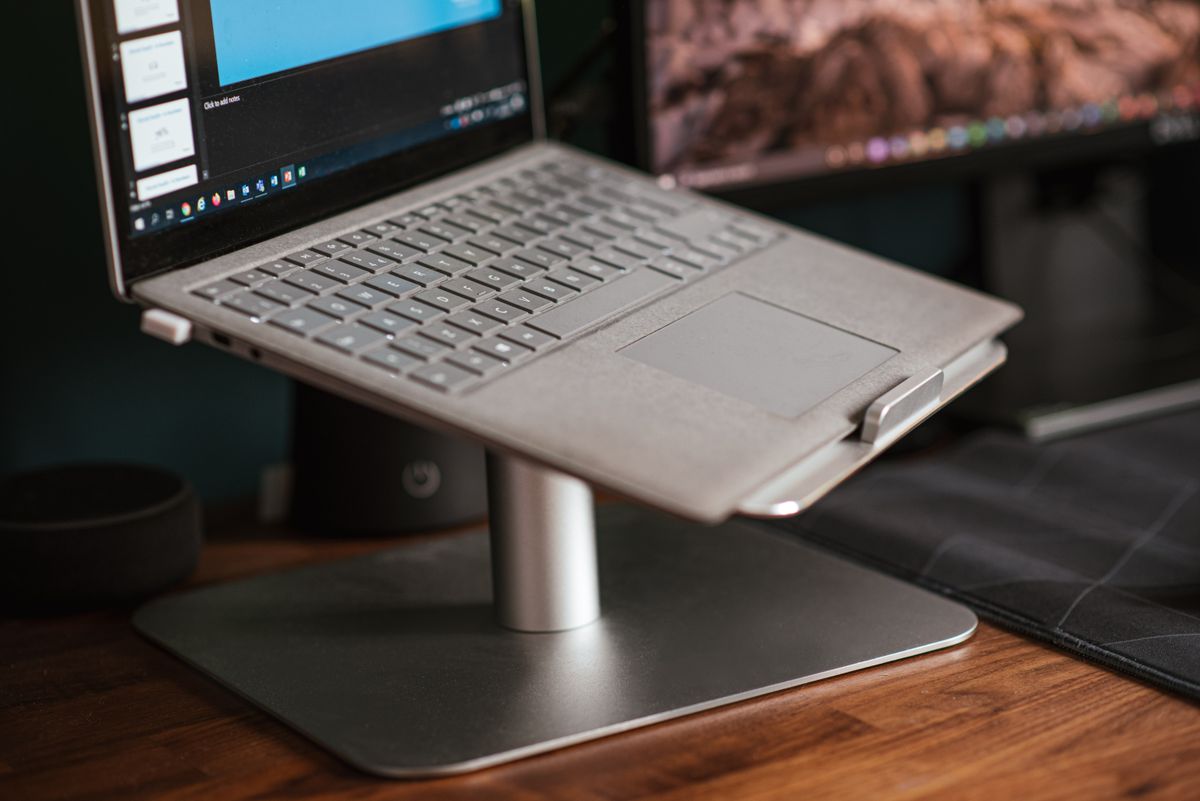
A broad decorative base can consume the very space you hoped to reclaim. Check whether the included stand adjusts to a useful height and whether it leaves room for your hands and notebook. A monitor arm can free surface space, but it needs a suitable mounting point and enough movement clearance behind or beside the desk.
If an arm appeals, verify the display's mounting compatibility, weight, and the arm's limits. Check desk thickness and construction too; not every thin or hollow tabletop suits every clamp. Add the arm to the budget before comparing monitors. An appropriate included stand may be a simpler purchase than a bargain screen that immediately needs another accessory.
Check the laptop connection from end to end
Write down the video outputs your laptop actually supports and the inputs on the monitor. Microsoft and Dell both document that USB-C video connections depend on compatible features, not just a matching port shape. Verify the cable as well. A charging lead from a phone drawer may not provide the display connection your new screen requires.
If you want the monitor to charge the laptop, compare its stated power delivery with the computer's requirements. Check whether the USB-C port is an upstream connection for the laptop or a different accessory port. A one-cable arrangement is convenient when it is genuinely supported; otherwise, a straightforward video cable and the laptop's own charger can be the more economical solution.
Think about the room and its second user
A window behind you may reflect in the screen, and a lamp can create a distracting bright patch. Consider placement before paying for another panel technology. If the desk is shared, a stand that adjusts easily can be more valuable than an upgrade in advertised contrast. Check how the screen looks for the person who will use it most often.
Speakers, a webcam, and USB ports can reduce clutter, but bundled functions should meet your needs rather than simply inflate the feature list. A built-in hub is helpful if it replaces equipment you would otherwise buy. If you already have reliable peripherals, there is less reason to pay for duplication. Decide what the display must do and what is merely convenient.
Check your documents after installation
Open a normal document, spreadsheet, and browser page at your preferred text size. Move the monitor to its intended position and check that the keyboard and mouse still have comfortable space. Confirm that the computer exposes the expected resolution and refresh settings. Save the included cable and instructions so future troubleshooting begins with a known arrangement.
If you find yourself leaning forward or pushing the keyboard aside, revisit placement and scaling before assuming you need a different screen. Use the return period if the geometry remains wrong. A good small-desk purchase should improve the whole work surface, not simply add a larger rectangle to an already crowded room.
Choose for the way you use it
| Use case | Look for | Tradeoff |
|---|---|---|
| Very shallow desk | Compact stand or suitable mounting arm | Mounting can add cost and restrictions |
| Documents and spreadsheets | Comfortable text scaling and useful workspace | More pixels do not automatically mean more readable space |
| One-cable laptop setup | Verified video and adequate charging output | Can cost more than a basic display |
Before you buy
- Measure physical display and stand dimensions.
- Check text scaling at your actual viewing distance.
- Verify the complete laptop, cable, and monitor connection.
- Include an arm or adapter in the total if required.
Common questions
Is a larger monitor always better for productivity?
Only when it fits your space and viewing needs. A screen that forces an awkward keyboard position or uncomfortable text size can make a small desk less useful.
Will any USB-C laptop drive a USB-C monitor?
No. Confirm supported video features on the laptop, display, and cable. The connector shape alone is insufficient.
Sources & further reading
Official information consulted October 19, 2026. Buying recommendations and use-case judgments are TechPixl editorial analysis.